How to Claim a Minecraft Alt Safely
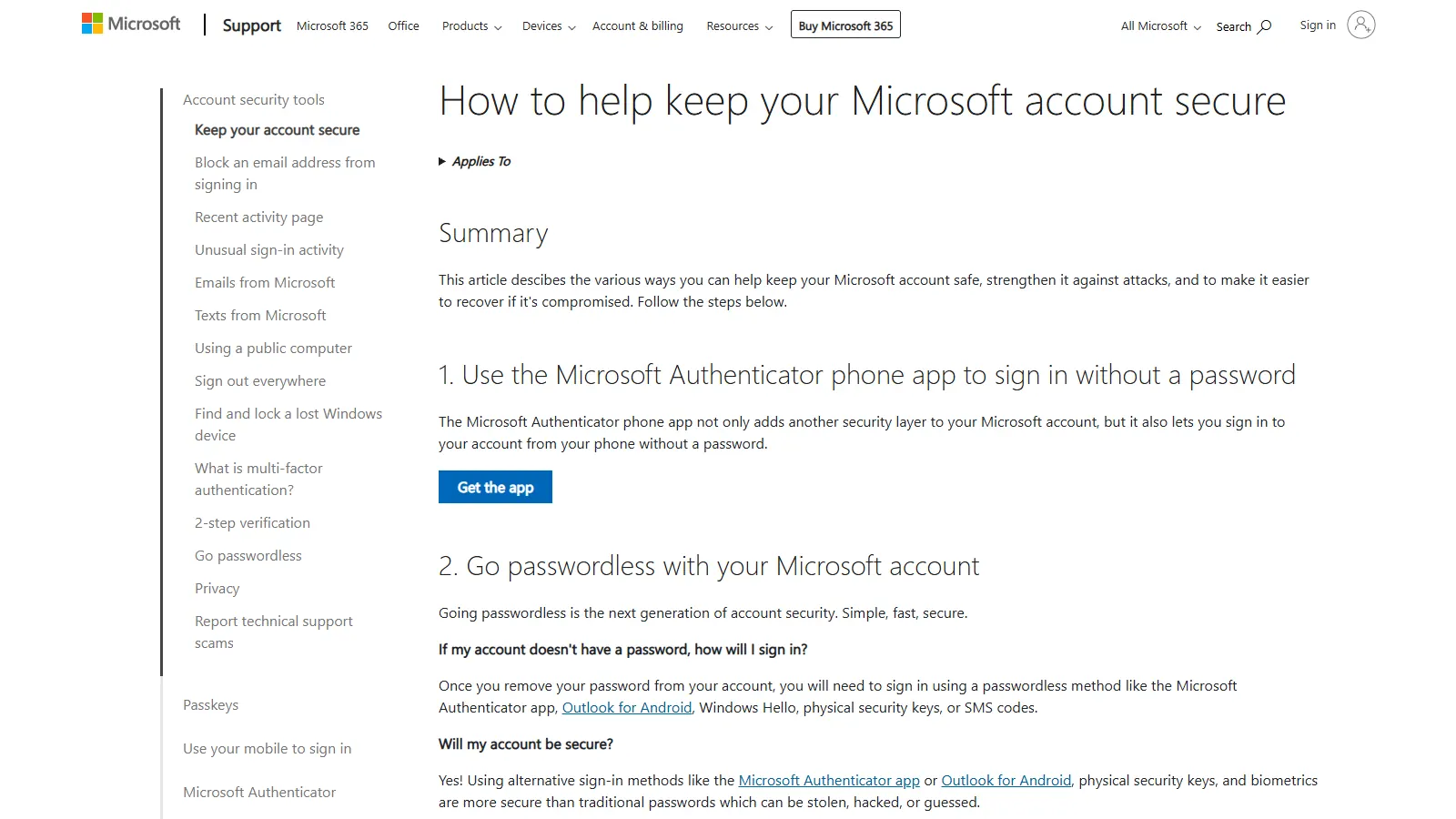
Screenshot: How to help keep your Microsoft account secure (support.microsoft.com)
The riskiest part of buying an alt is not always checkout. It is the ten minutes after delivery.
If you rush, you can trigger security checks, lose track of credentials, or miss a problem that support could have fixed quickly. Use this workflow instead.
Before you log in
Copy the delivered credentials into a local note. Keep the order ID with them. Do not post the credentials into Discord, screenshots, or a shared cloud document.
Open a private browser window. If your browser is already signed into another Microsoft account, a private window prevents accidental account switching.
If your PC has been acting suspicious, scan it before changing passwords. Microsoft's compromised-account guidance recommends cleaning the device before resetting credentials.
Step 1: verify the Microsoft login
Sign in to the Microsoft account using the delivered details. Read every prompt carefully. If Microsoft asks for a code or recovery method that was not included, stop and contact support instead of guessing.
Once signed in, confirm that the account page is accessible and not blocked by a warning you cannot clear.
Step 2: verify Minecraft access
Go to Minecraft's official site or the launcher and confirm the account owns the expected edition. Minecraft Java and Bedrock for PC are now bundled for current PC purchases, but older account histories can vary, so verify what matters for your product.
If the listing was server-specific, also confirm the server claim before making unrelated changes.
Step 3: change the password
Use a unique password. Do not reuse your main account password, email password, Discord password, or anything you have used on another seller's site.
If you use a password manager, generate a fresh password and store it under a clear label.
Step 4: review security info
Microsoft accounts can use security info and verification methods such as authenticator apps, phone, email, or security keys depending on the account flow. Review what is attached and add your own method when available.
Do not remove a recovery method until you are sure you have a working replacement. Locking yourself out is not a flex.
Step 5: save proof and clean up
Save the order ID, the product title, delivery time, and any support notes. If the account has special value, such as a rank or cape, take a screenshot of the relevant account page or in-game proof after you verify it.
Then log out of any browser sessions you do not need.
When to contact support
Contact alts.cool support if the login fails, the delivered account does not match the listing, Microsoft requests unavailable verification, or a server-specific claim fails during your first check.
Do not keep retrying random passwords. Repeated failed attempts can make a simple support issue harder.